



How to create a CLEAR account for VA
Follow these steps to create your CLEAR account through VA.gov. With an identity-verified CLEAR account, you can manage your VA healthcare and benefits online through VA websites and apps—including VA.gov and the VA: Health and Benefits mobile app.
Your VA.gov CLEAR account is different than CLEAR+
A CLEAR account for VA.gov doesn’t include the travel benefits associated with the paid CLEAR+ membership.
Create your account
Make sure you’re ready to create your account. You’ll need a unique personal email address that only you use, and a mobile phone number that can receive SMS messages.
Note: Don’t use an email address that you share with someone else, like your spouse or family. And be sure it’s an email you’ll continue to have access to in the future. After you create your account, you’ll be able to add a second email to your account.
Gather your personal documents to complete the process.
Here’s what you’ll need:
- A government-issued ID, and
- Your Social Security number, and
- A smartphone with a working front-facing camera and updated software
Learn what government-issued IDs CLEAR accepts on the CLEAR website
Select the Create a CLEAR account link on this page.
This will start the process for creating a CLEAR account for VA.gov. You can follow the instructions here as you create your account.
Note: Be sure to use the link on this page and follow all the steps to create and verify your account through VA.gov.
Select Verify with CLEAR.
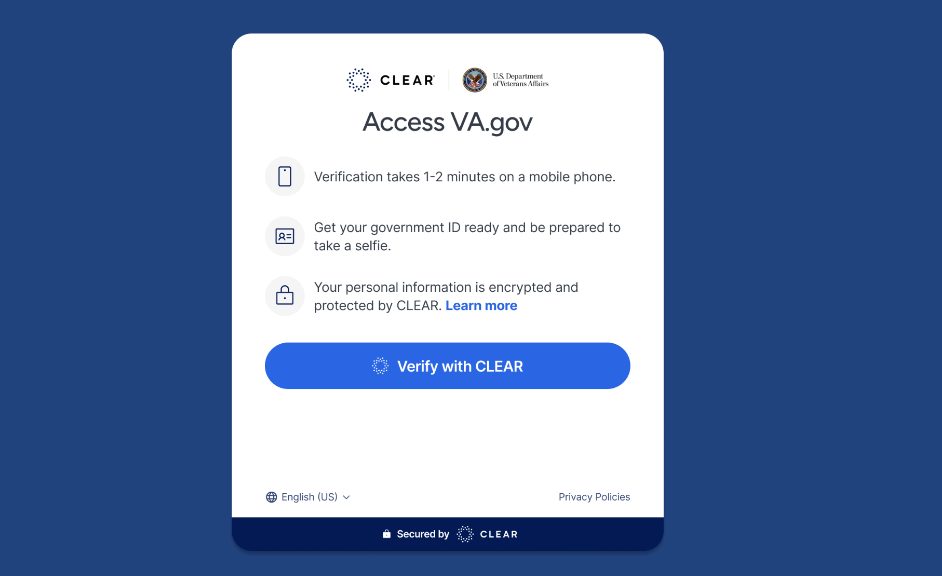
Complete the one-time verification process.
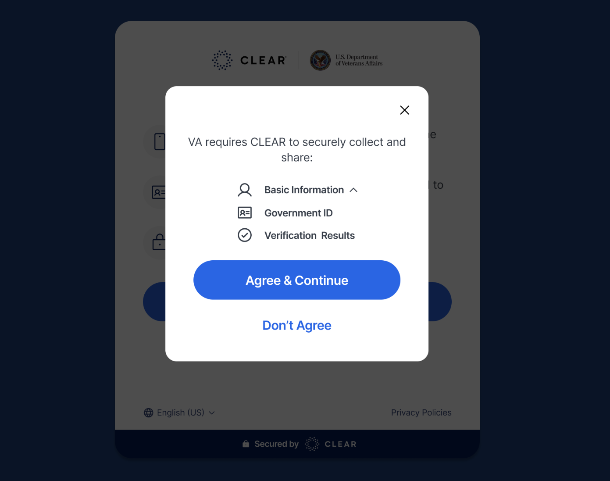
Select Agree & Continue.
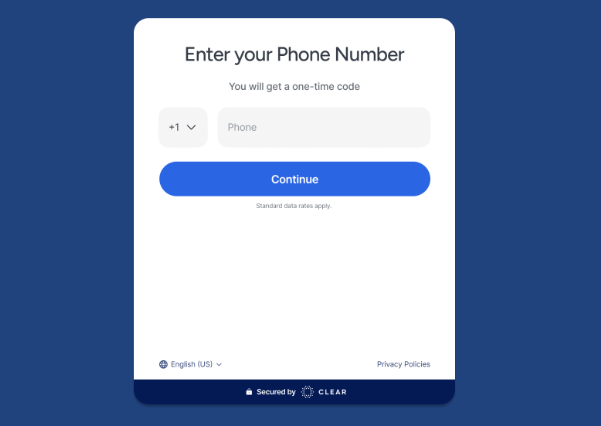
Enter your phone number.
Then select Continue.
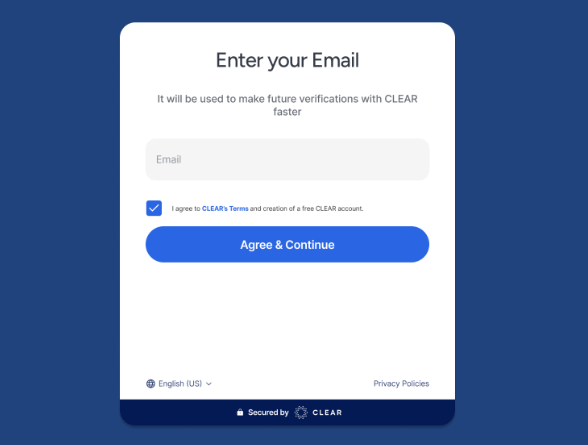
Enter your email address.
If you agree with CLEAR’s terms to create an account, select the checkbox. Then select Agree & Continue.
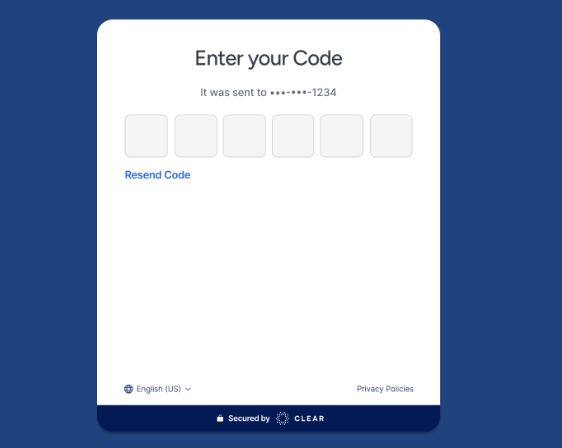
Enter the one-time passcode sent to your phone.
Verify your identity
Note: If you’re on a desktop computer, you’ll get a link to complete identity verification on your smartphone. This link expires after 10 minutes.
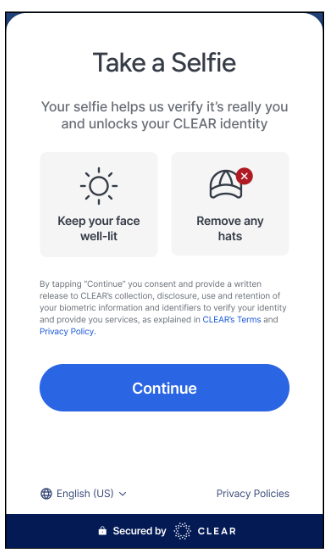
Read and consent to the terms that allow CLEAR to collect your personal and biometric information.
If you agree, select Continue to open your smartphone camera to take a selfie.
You’ll be prompted to create a passkey. This is optional.
Select Create passkey. Follow the steps on your device to create a passkey. Or select Not now to skip this step.
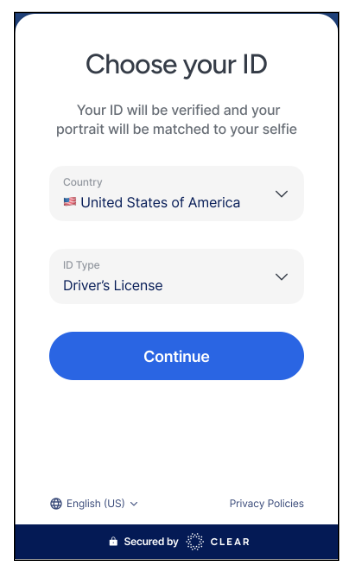
Choose the government-issued ID you’ll use for verification.
Select the country that issued your ID.
Select your ID type.
Select Continue.
Take photos of your government-issued ID.
In this step, your phone camera will guide you to take photos of the front and back of your government-issued ID.
Note: If you use a passport to verify, you’ll need to enter your address on the next step.
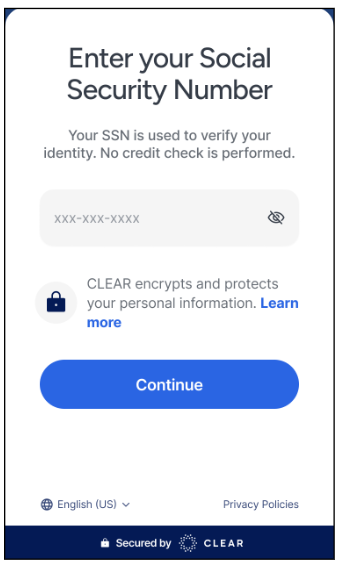
Enter your Social Security number.
CLEAR should send you back to VA.gov to our Terms of Use.
Read the terms and accept them if you agree. You must agree to our Terms of Use to manage your benefits and healthcare online.